
Email Configuration and Email to Project Guide
Paperclip now includes enhanced email feature
Paperclip now includes enhanced email features, allowing you to send emails using your own Gmail or SMTP email account, as well as store emails directly against client projects using the new Email to Project function.
Overview of Available Features Outbound Email Options
You can now choose to send emails from:
Your standard Paperclip email account Your own Gmail account Your own SMTP email account Email Storage Options Emails sent from your Paperclip account remain within the software as normal Replies to your own Gmail or SMTP account will go back to your own mailbox, not into Paperclip Emails can be forwarded into Paperclip for storage Emails can now be sent directly into a project using the new Email to Project feature
Important Information Before Setup
Please note:
When using your own Gmail or SMTP outbound email account:
Email delivery becomes dependent on your own email provider Paperclip cannot guarantee successful delivery Replies will return to your own mailbox, not back into the software Replies will therefore not automatically store against your client project
You can manually forward replies or emails into Paperclip for storage.
How to Add Your Own Gmail or SMTP Email Account
Go to: Back Office
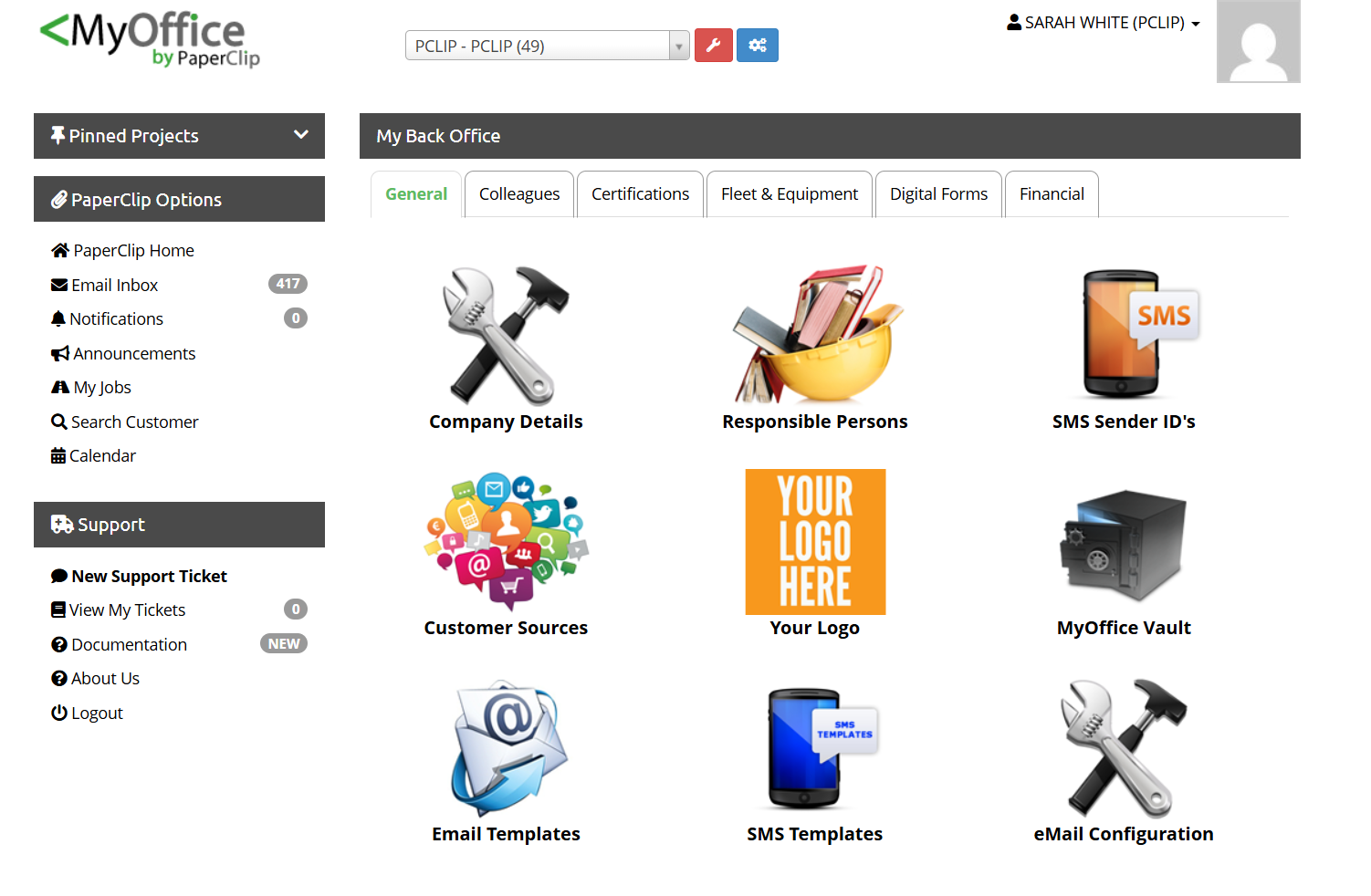
Then select: Email Configuration
Then select: Add New Email Service
Then select: Gmail or SMTP(Outlook 365 not yet enabled)
Enter your account details and save.
Once saved, you can choose that email account when sending emails through the software.
How Email Sending Works
When sending from your own Gmail or SMTP account Emails are sent using your own provider. Delivery depends on your provider settings and reputation. Replies return to your normal inbox. Replies do not automatically update Paperclip
How to Use Email to Project
The new Email to Project feature allows emails or documents to be stored directly against a specific customer project.
Open the relevant customer project.
Select: Contact
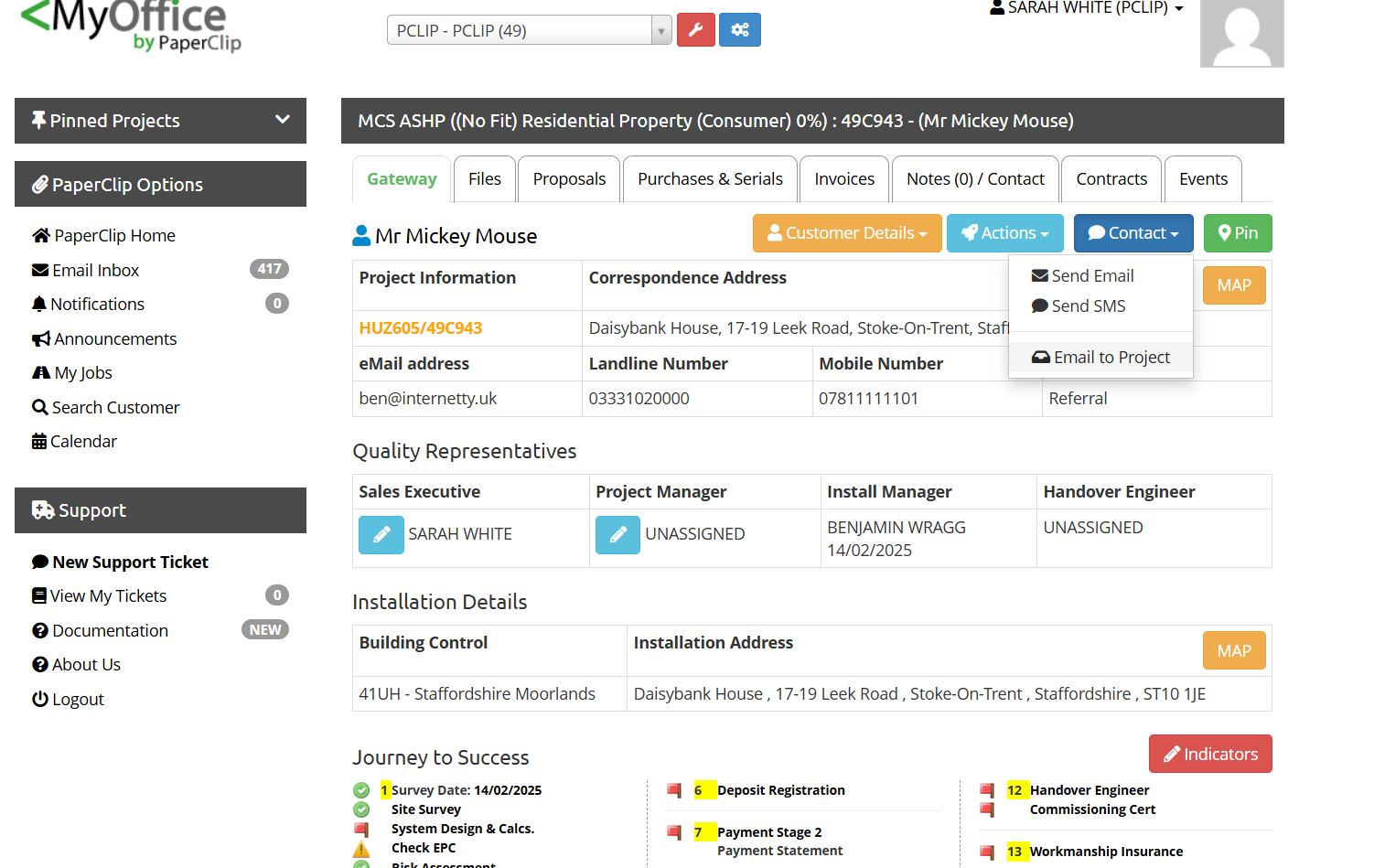
Then select: Email to Project
What It Does...
This creates a dedicated project email route, allowing documents or emails to be stored directly within that project file for record keeping.
Ideal for Customer replies, Supplier confirmations, DNO correspondence, Warranty documents and General project communications
Updated 5 months ago