
Getting Started
Before using Paperclip to create compliant proposals, contracts, or handover packs, you must complete the setup menu.
Setup Menu
This ensures every part of your business is aligned with MCS requirements.
Below is a breakdown of each section in the setup menu — what it does, and why it’s required.
As you complete each stage, a green tick will appear. Once all sections are complete, you’ll see a confirmation box to mark the setup as finished.
You can make changes or updates later by re-accessing each section via the Back Office or the corresponding section of the software.
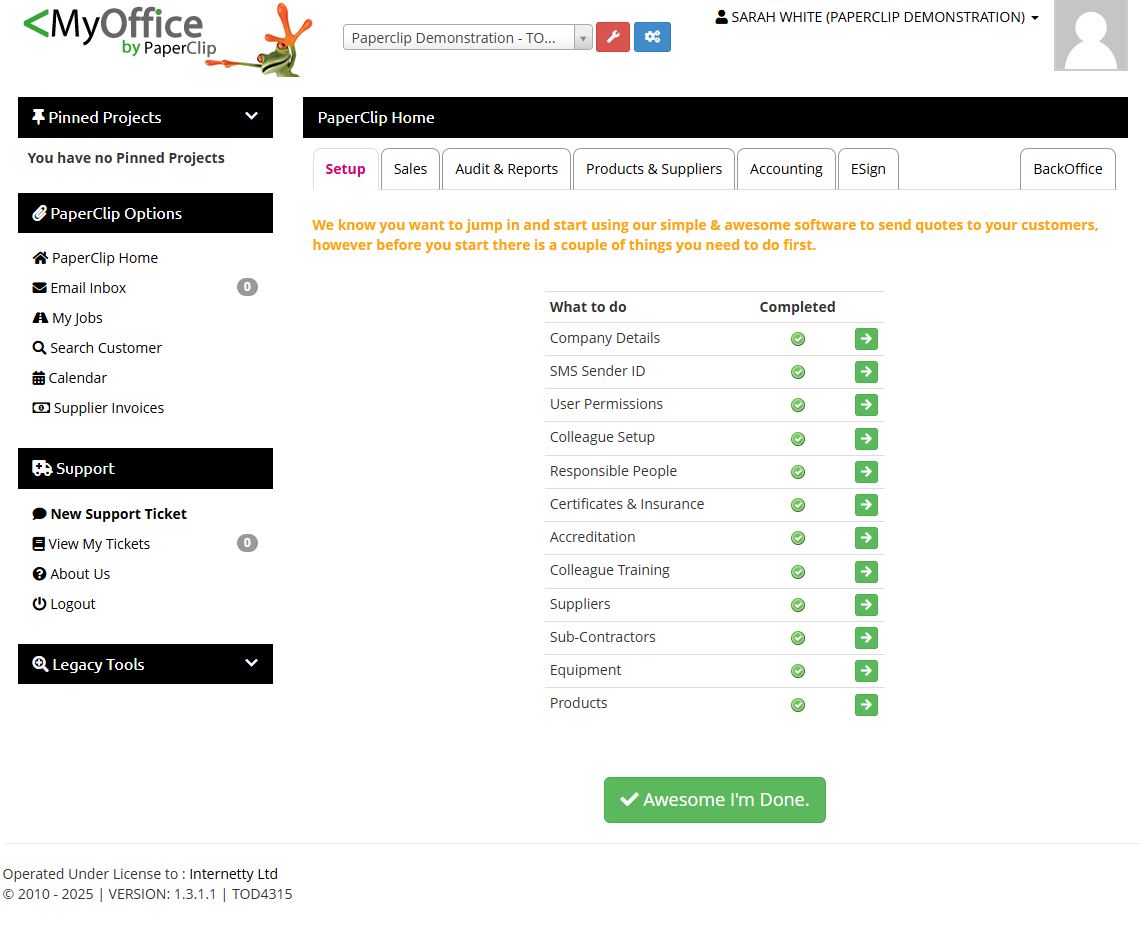
Company Details
📍What to Do:
Enter your legal business name, trading name(s), registration number, VAT number, and business addresses. Review each tab carefully, check any auto-populated fields, and complete any blanks.
If you have not yet achieved MCS accreditation, select ‘Awaiting Accreditation’ in the dropdown.
You must still select your certification body.
If your consumer code membership is pending, enter ‘TBC’ in the membership number field to progress.
📍Why It’s Important:
This information appears on contracts, proposals, MCS certificates, and audit documents. It must match your Companies House and MCS records for compliance.
SMS Sender ID
📍What to Do:
Set your company name or an abbreviation (maximum 11 characters) as the sender for customer SMS notifications.
📍Why It’s Important:
Customers often respond faster to SMS than email.
Paperclip includes 15 SMS credits per month, with the option to purchase more if required.
Using your company name as the sender builds trust, meets consumer code expectations, and ensures customers clearly recognise who the message is from.
User Permissions
📍What to Do:
Assign role-based access for each user (e.g. Admin, Installer, Salesperson).
If you’re the sole user or don’t need different permissions, clone the existing DEFAULT ADMIN (USER) role (the master account) and assign it a new role name.
If you have multiple users, create as many roles and permission sets as needed, and name them clearly for easy reference.
📍Why It’s Important:
Helps maintain GDPR compliance.
Ensures users only access the data they need.
Required under MCS scheme rules and consumer code regulations.
Colleague Setup
📍What to Do:
Add all team members who will use the platform, including their role and contact details. You can add up to 50 users under your licence. Each user must have their own unique login.
📍Why It’s Important:
Logins must not be shared — one user per device. Sharing causes disconnections and affects task tracking.
Unique logins allow responsibility assignment in workflows (proposals, surveys, installations, handover docs) and create a clear audit trail for compliance.
🔎 Note: Users cannot be deleted. They can only be archived, ensuring audit records remain intact.
Responsible People
📍What to Do:
Identify key personnel responsible for business operations and compliance. Select their names from the dropdown lists and click Save. Ensure each person is competent and qualified for their role.
Why It’s Important:
Defining and documenting responsibilities is a core compliance requirement. Key roles include health and safety, quality management, and other operational and regulatory areas.
Certificates & Insurances
📍What to Do:
Upload copies of all mandatory business certificates and insurance documents. This typically includes:
MCS Certification (or confirmation of application if still pending)
Consumer Code Membership Certificate (HIES or RECC)
Public Liability Insurance (minimum £2m cover)
Professional Indemnity Insurance (where applicable)
Employers’ Liability Insurance (if you employ staff)
Any other industry-specific insurance required for your activities
Ensure each file is clearly named (e.g. Public Liability Insurance 2025.pdf) and includes the valid issue and expiry dates.
📍Why It’s Important:
Proof of certification and insurance is a core requirement under MCS scheme rules.
These documents are checked during MCS audits and must remain valid and up to date.
Uploading them to Paperclip ensures a single, accessible record for compliance and creates an audit-ready file trail.
🔎 Note: Paperclip will remind you when expiry dates are approaching so you can update documents promptly.
Accreditation
📍What to Do:
This section automatically updates once your Company Details (see Step 1) have been completed correctly.
If you have entered your MCS certification body and current consumer code membership, this flag will turn green automatically.
If either of these are missing or incomplete, the flag will remain red until corrected.
📍Why It’s Important:
Accreditation is the foundation of compliance in Paperclip.
Without valid MCS and consumer code membership details in place, your system will not generate compliant documentation (contracts, proposals, certificates).
This automated link ensures you cannot progress without meeting the baseline accreditation requirements.
🔎 Note: If this flag remains red, return to Step 1 – Company Details and update your accreditation and membership information.
Colleague Training & Competence
📍What to Do:
Provide evidence that all colleagues listed under Responsible People (Step 5) are competent to fulfil their roles. This must include:
Qualified electricians – upload copies of their certificates (e.g. City & Guilds, NVQ, BS 7671 18th Edition).
Surveyors, designers, and installers – upload evidence of relevant training (e.g. manufacturer training, MCS-recognised courses such as BPEC or LCL Awards).
Health & Safety roles – upload training evidence such as CSCS cards, IOSH, or equivalent.
Subcontractors – where subcontractors are used, their qualifications and competencies must be uploaded to their subcontractor file in Paperclip.
For each colleague or subcontractor, ensure documents are clearly labelled and include:
The qualification or training achieved
The awarding body/provider
Date of issue and (if applicable) expiry
📍Why It’s Important:
Under MCS and JCS guidelines, contractors must demonstrate the competence of all staff and subcontractors engaged in installation, design, and sign-off activities.
Evidence of qualifications is checked at MCS audits and must be kept up to date.
Linking competencies to Responsible People ensures accountability and demonstrates compliance with Building Regulations and Health & Safety legislation.
🔎 Note: Where training is pending (e.g. new staff), upload evidence of enrolment or booking to allow projects to progress, but replace with full certificates once achieved.
Suppliers
📍What to Do:
Add all suppliers you purchase equipment or materials from into Paperclip. For each supplier, record:
Company name and contact details
Product categories supplied (e.g. Solar PV panels, inverters, batteries, heat pumps, biomass boilers)
Any applicable accreditations or approvals (e.g. MCS listed products)
Suppliers can then be linked to your product library so that only approved products are available for proposals, designs, and installations.
📍Why It’s Important:
Maintaining a formal supplier list is an MCS requirement. Auditors will check that you hold an up-to-date list within your QMS.
Demonstrates that you are sourcing only from recognised, compliant suppliers of MCS-certified products.
Provides full traceability of equipment used in projects — essential for warranty claims, recalls, and consumer protection.
Ensures your whole team works from the same approved list, avoiding the risk of non-compliant products being installed.
🔎 Note: Only products listed in the MCS Product Database (or equivalent recognised listings) can be used for MCS installations. Your supplier list provides the audit evidence that this requirement is being met.
Subcontractors
📍What to Do:
Add details of any subcontractors you use for surveys, installations, electrical work, scaffolding, roofing, or other project activities. For each subcontractor, record:
Company name and contact details
Service provided (e.g. electrician, roofer, scaffolder)
Copies of qualifications and certifications (e.g. NVQ, BS 7671, manufacturer training)
Insurance documents (e.g. public liability, employers’ liability where applicable)
Consumer code membership or CPS registration (if required for their trade)
Upload evidence directly into the subcontractor’s file so it is linked to your compliance record.
📍Why It’s Important:
Maintaining a subcontractor register is mandatory under MCS and JCS.
You must demonstrate that all subcontractors are competent, insured, and working to the same compliance standards as your in-house team.
Ensures subcontractor qualifications are available for audit and that their work can be tracked to specific projects.
Provides a clear record of responsibility and accountability if issues arise.
🔎 Note: If subcontractors carry out roles defined under Responsible People, you must still upload their evidence of competence and link it to their subcontractor file.
Equipment & Calibration
📍What to Do:
Record all testing and measurement equipment used by your business (e.g. multifunction testers, insulation resistance testers, clamp meters, pressure testing kits, thermal imaging cameras). For each item, include:
Equipment type and model
Serial number / ID
Date of purchase
Calibration certificate (upload copy)
Calibration due date
Upload the latest calibration certificate and update the due date in Paperclip. When recalibration is carried out, upload the new certificate and update the record.
📍Why It’s Important:
MCS and JCS require all measuring and testing equipment to be regularly calibrated and traceable to national standards.
Calibration ensures that test results (e.g. electrical safety tests, pressure tests) are accurate and reliable.
Audit checks will review your calibration records to confirm that all equipment in use is within calibration date.
Storing this in Paperclip ensures reminders are visible and compliance is maintained.
🔎 Note: If equipment is replaced or retired, archive the record rather than deleting it — this preserves a full audit trail.
Products
📍What to Do:
Add the products you intend to install into your Product Library. For more specific guidance on Adding New Products click here
Products can be linked to suppliers (see Step 9) to ensure only approved and compliant equipment is used in proposals, designs, and installations.
📍Why It’s Important:
Maintaining a controlled product library is an MCS requirement — only products listed on the MCS Product Database (or equivalent) can be used in certified installations.
Ensures consistency across all proposals, handover packs, and MCS certificates generated through Paperclip.
Provides a clear audit trail showing which products are authorised for use in your business.
Helps prevent errors or non-compliant products being accidentally specified by sales or design staff.
🔎 Note: Keep your library up to date — archive obsolete products rather than deleting them to preserve full audit history.
Updated 12 months ago