
Management Review Meetings
How to plan, run and record Management Review Meetings in MyOffice.
How to plan, run and record Management Review Meetings in MyOffice, under Audit & Reports.
Getting there
Open the home page, choose the Audit & Reports tab, then click Management Review Meetings. The page lists every meeting, newest first. Click a row to open that meeting.
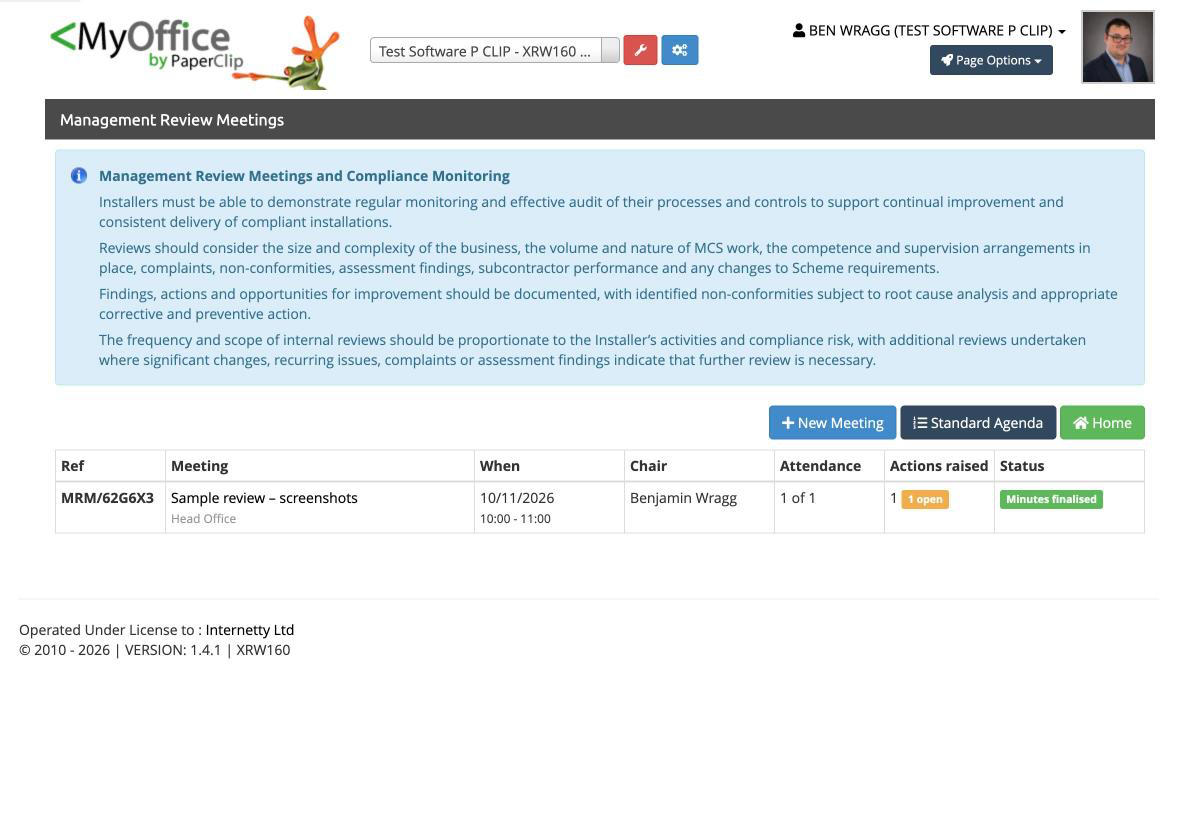
| Column | What it shows |
|---|---|
| Ref | The meeting reference |
| Meeting | Title, with the venue underneath |
| When | Date, start and finish times |
| Chair | Who chairs the meeting |
| Attendance | People who attended, out of those invited (e.g. 3 of 4) |
| Actions raised | Actions raised at the meeting, with an amber badge for any still open |
| Status | Planned · Minutes in progress · Minutes finalised (green) |
The buttons above the list are New Meeting, Standard Agenda and Home.
A summary of all meetings is also available as a report. Go to Audit & Reports → Audit Reports → Company → Management Review Meetings. It lists each meeting's chair, who was present, apologies, the number of agenda items, actions raised, actions still open and minutes status. Past meetings that aren't finalised yet are highlighted.
Setting up
Set up your Standard Agenda once. After that, every new meeting starts with its agenda already filled in.
Standard Agenda (one-off)
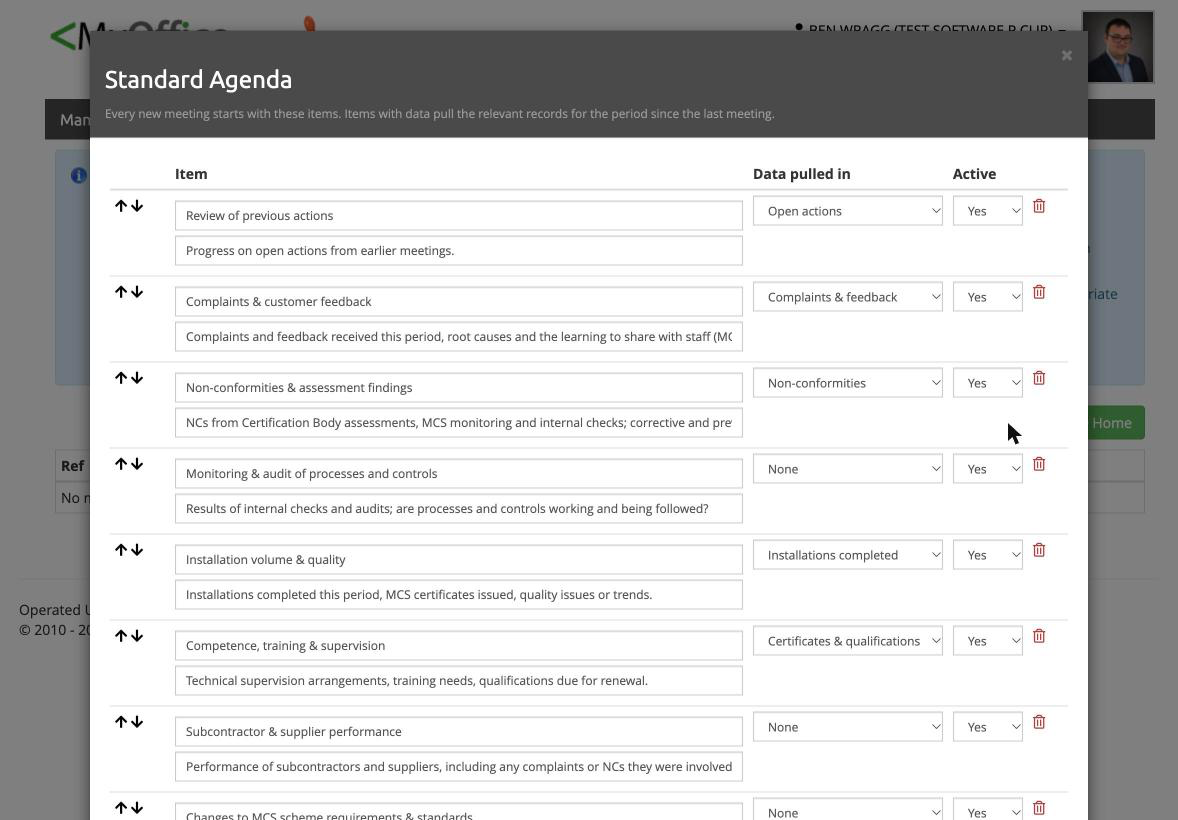
Click Standard Agenda on the meetings list. Each row is one agenda item:
- Item: the title, plus optional guidance for the chair underneath.
- Data pulled in: records the meeting shows automatically for the period being reviewed (see the table below).
- Active: set to No to keep the item without adding it to new meetings.
- Use the arrows to reorder items, the bin to delete one, and Add item to add another. Click Save when you're done.
- Reset to MCS defaults brings back the 11 built-in items, starting with Review of previous actions and ending with Any other business.
| Data pulled in | What appears under the item |
|---|---|
| Open actions | Actions from earlier meetings that are still open |
| Complaints & feedback | Complaints received in the period, plus any still open |
| Non-conformities | NCs raised in the period, plus any still open, with severity, stage and next deadline |
| Installations completed | Installations in the period, counted by technology |
| Certificates & qualifications expiring | Active certificates that have expired or expire within 90 days of the meeting |
| Equipment calibration due | Test equipment whose calibration is overdue or due within 60 days of the meeting |
The review period runs from the date of the previous meeting to this meeting's date. For your first meeting it covers the previous 12 months.
Creating a meeting
- Click New Meeting.
- Enter the Title (it defaults to Management Review Meeting) and the Date. Both are required.
- Optionally change Start and Finish (10:00–11:00 by default), the Chair (choose who will chair) and the venue and address. These are pre-filled from your company details.
- Click Create meeting.
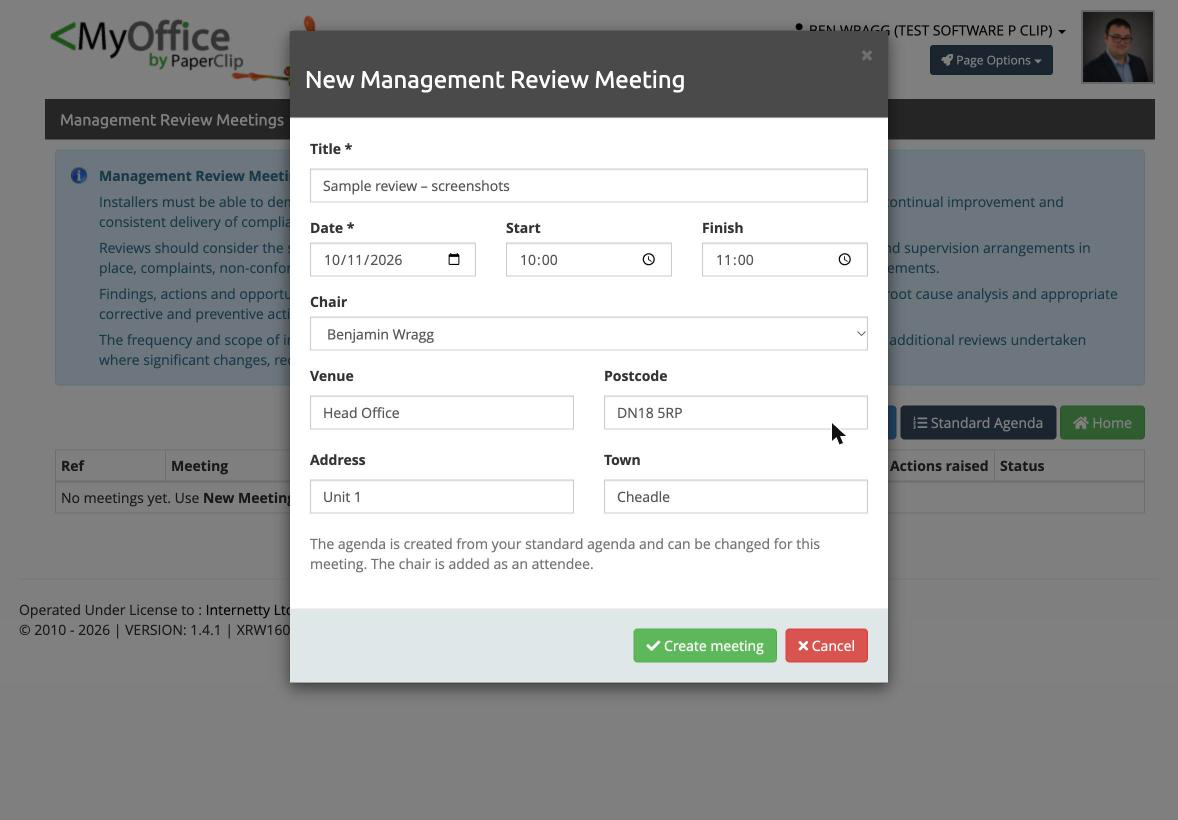
The new meeting takes the active items from your Standard Agenda, and the chair is added as an attendee. Changes to this meeting's agenda don't affect the Standard Agenda.
Before and during the meeting
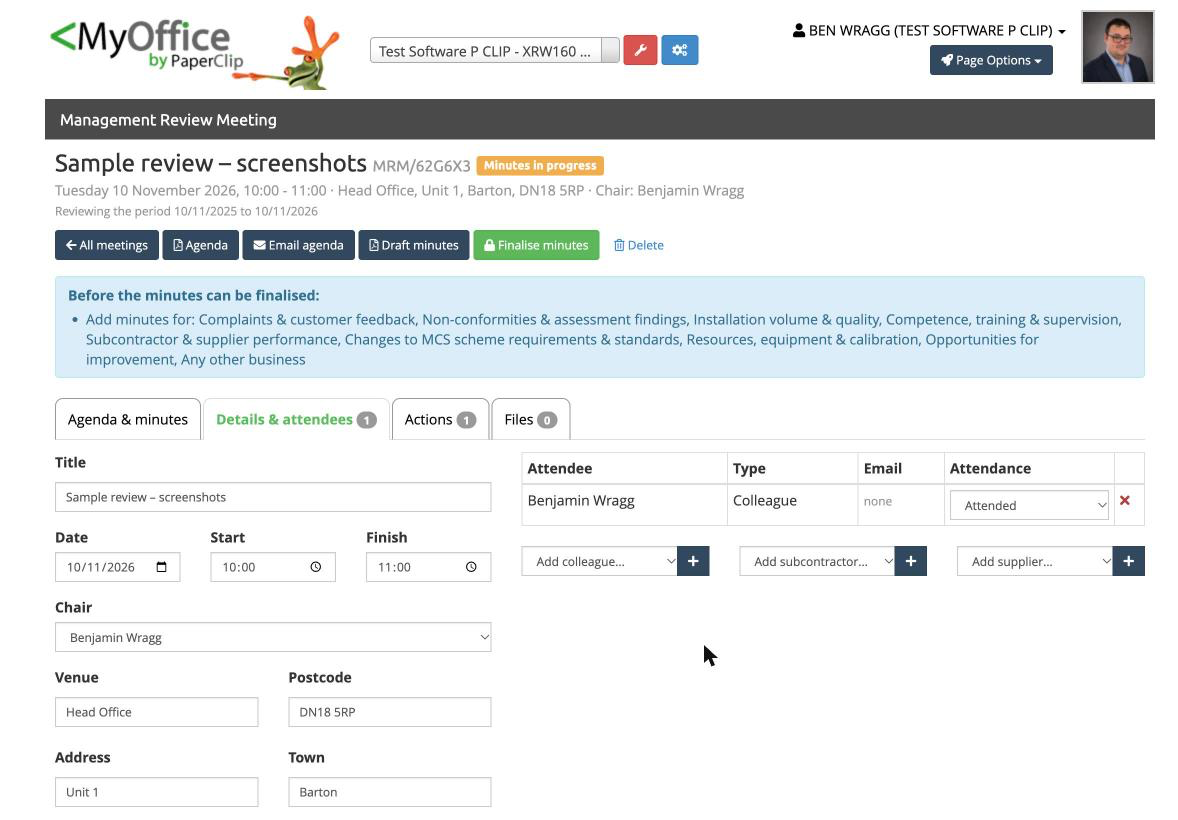
The meeting page has four tabs: Agenda & minutes, Details & attendees, Actions and Files. The header shows the date, venue, chair and review period, and when the agenda or minutes were last emailed.
Invite attendees
On Details & attendees, use the three pickers to add a Colleague, Subcontractor or Supplier, then click +. Change the title, date, times, chair or venue here and click Save details.
Send the agenda
Click Agenda to view the PDF, or Email agenda to send it. Everyone ticked gets their own email with the PDF attached, plus your optional message. Attendees without an email address can't be ticked.
Record attendance
After the meeting, set each attendee to Attended or an apology: holiday, sickness or other. Rows still set to Not recorded are highlighted.
Write the minutes
On Agenda & minutes, every item shows its guidance and, if it has one, a table of data for the review period. Type what was discussed and agreed in Minutes. It saves automatically when you leave the box, and a green Saved tick appears.
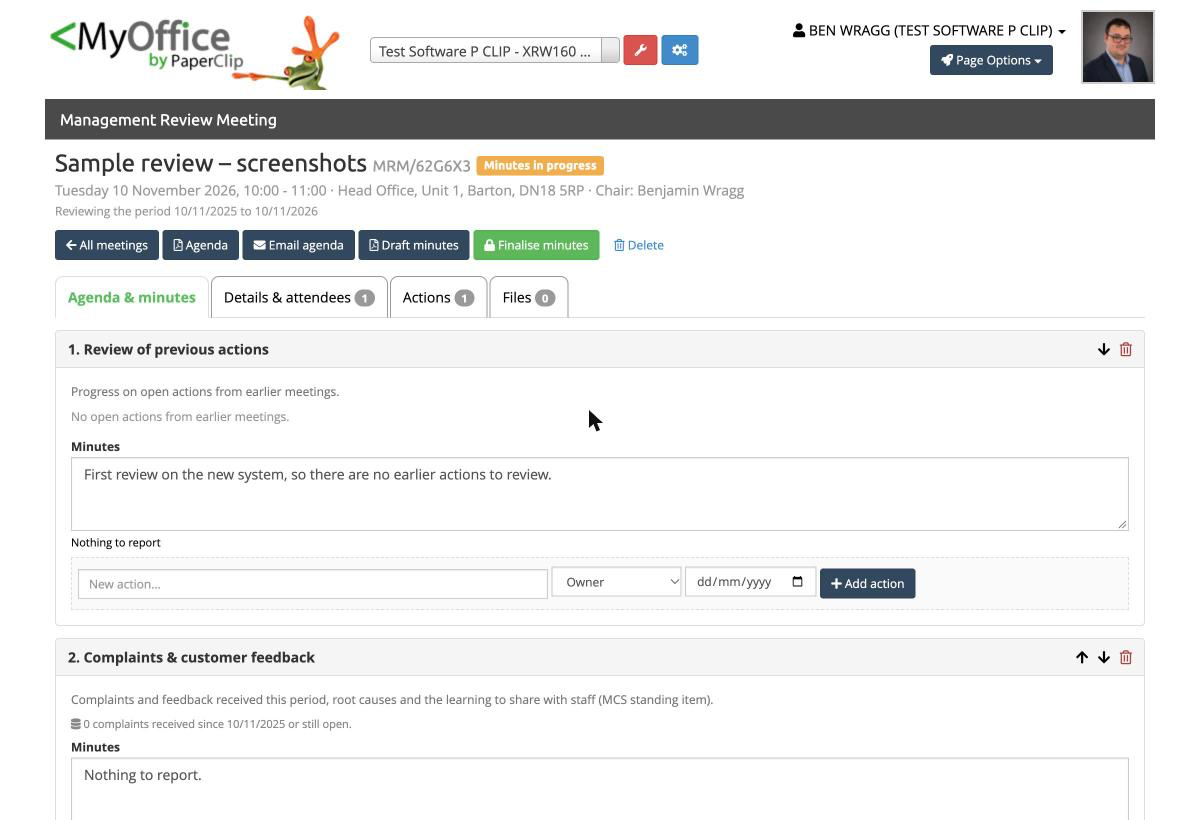
- Nothing to report fills in an empty box for you.
- Use the arrows to reorder items, or the bin to remove one from this meeting only. Any minutes written for that item are lost.
- Use Add an agenda item for this meeting at the bottom to add a one-off item.
- The Files tab holds supporting evidence, such as audit checklists, reports or slides. Use Attach a file to add one.
Once the first minutes are written, the status changes from Planned to Minutes in progress. Meetings recorded in the old meeting system show their minutes in a panel at the top.
Actions
Raise each action against the agenda item it came from. Open actions carry forward to every later meeting until they're closed.
- Under the agenda item, type the action in New action..., pick an Owner (a colleague) and a due date, then click Add action.
- The action appears under that item and on the Actions tab, under Raised at this meeting.
- At the next meeting it appears under Carried forward from earlier meetings, along with the meeting it came from. It also appears under the Review of previous actions agenda item.
- Record progress in Progress update, and set Status to Done or Cancelled once it's closed.
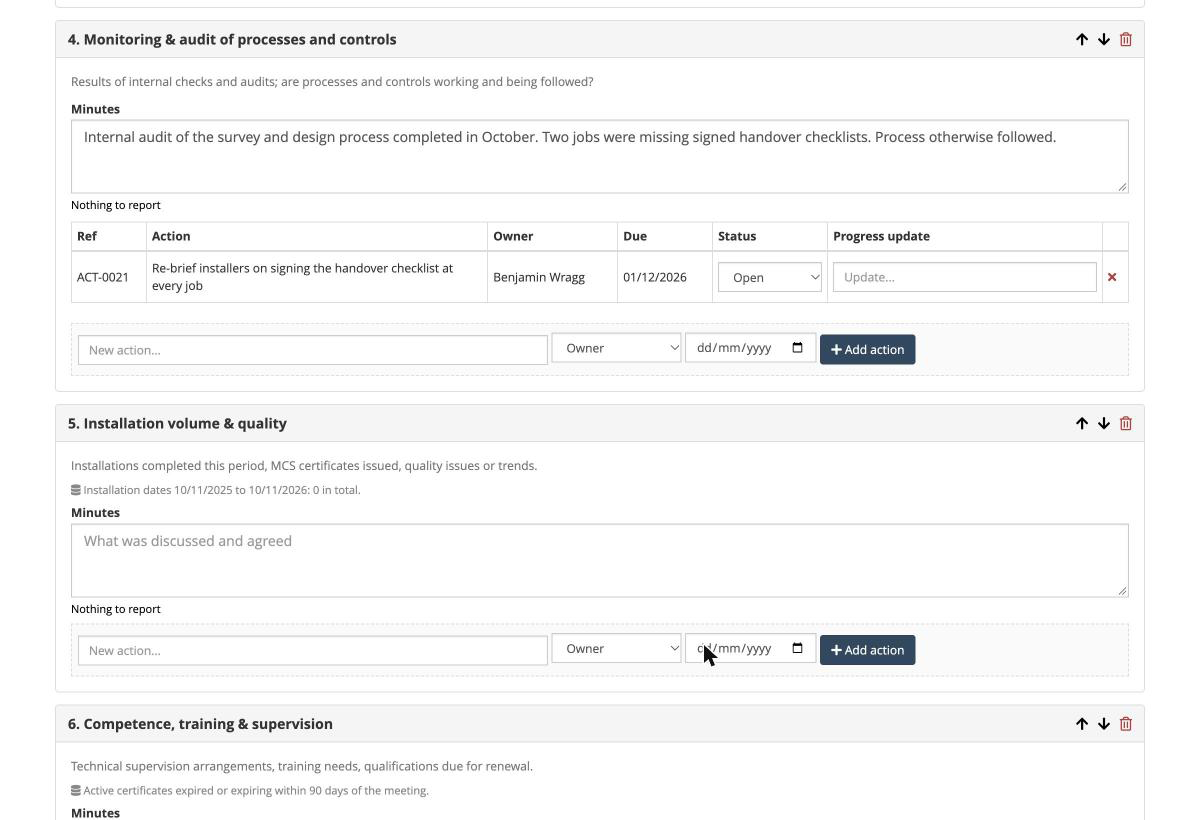
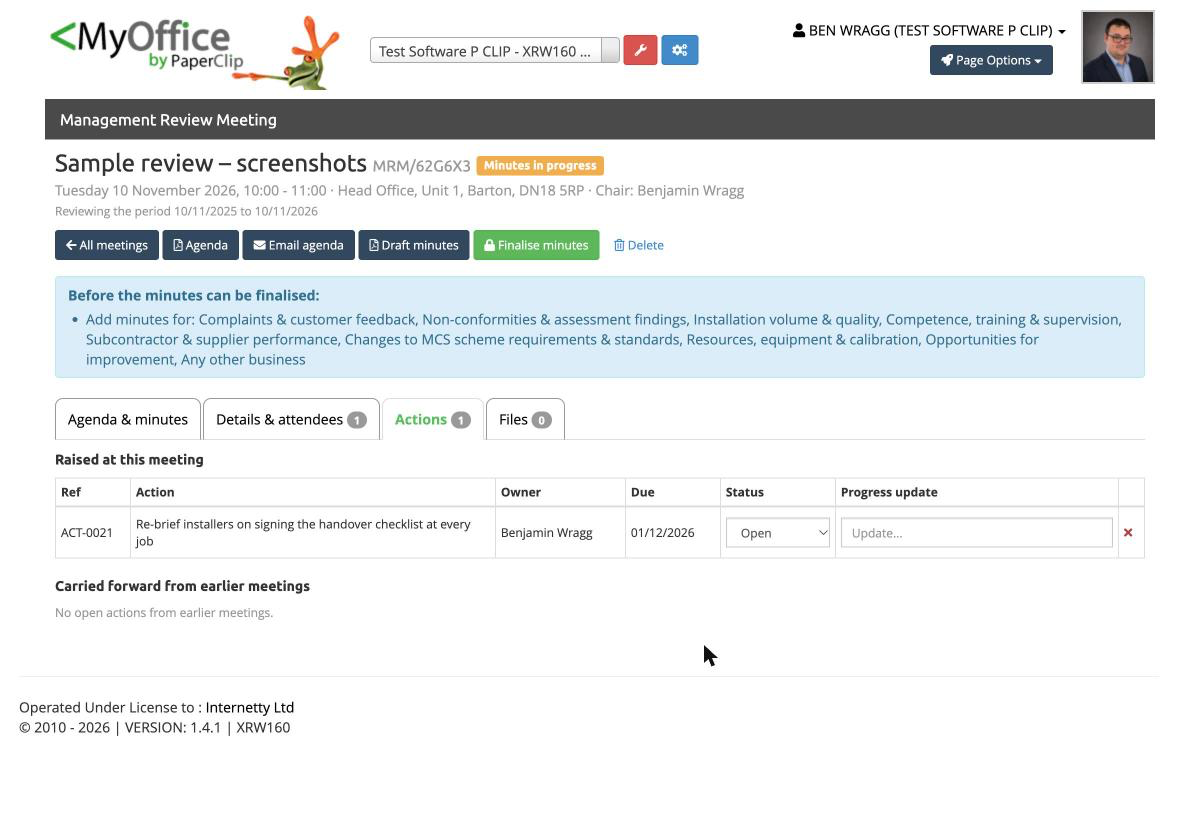
Open actions past their due date are shown in red and marked overdue. Closed actions are shown in green. Only an action raised at this meeting can be removed (×), and only while the meeting is open.
Finalising the minutes
Click Finalise minutes to lock the meeting. A blue box above the tabs lists anything that's still missing:
- A chair is selected
- At least one attendee has been added
- Attendance is recorded for everyone (no one left as Not recorded)
- At least one person attended
- Every agenda item has minutes (use Nothing to report where it applies)
- The meeting date isn't in the future
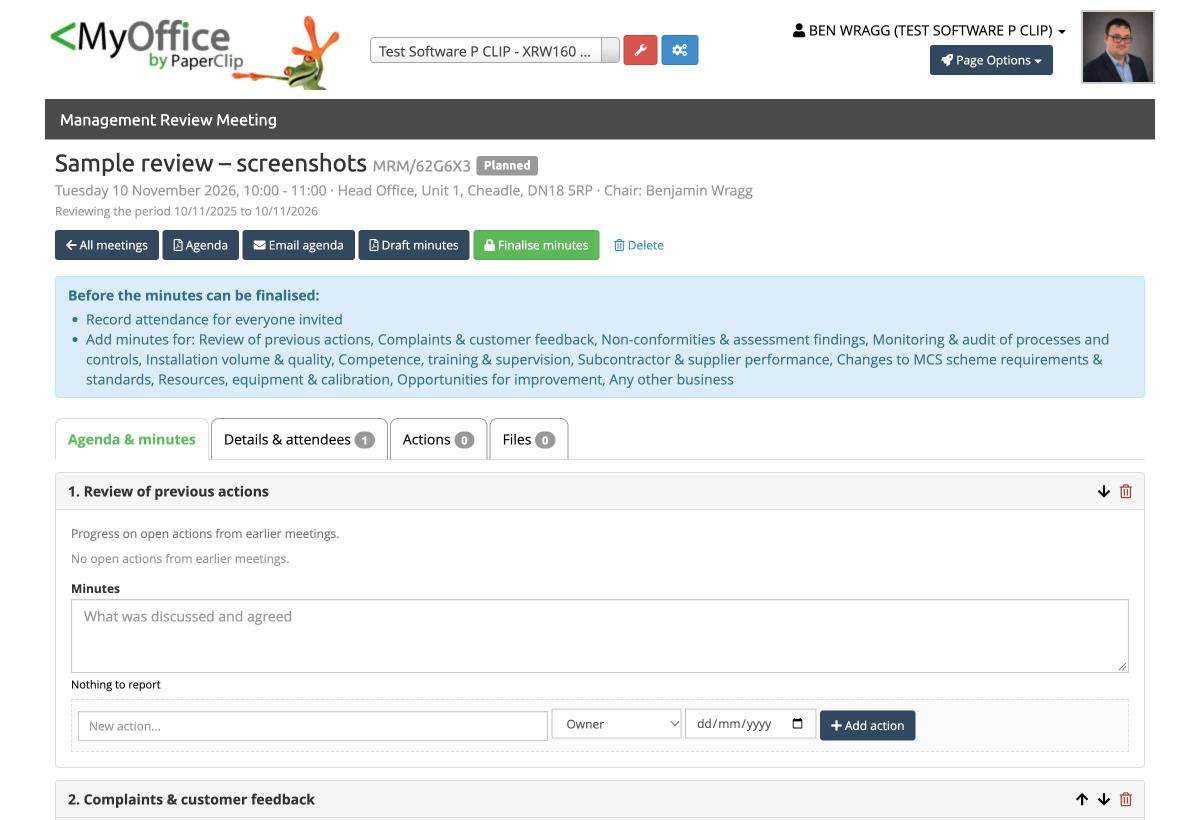
When you finalise:
- Every field, attendance setting, agenda item and action on the meeting is locked.
- The data shown under each item is frozen as it was at that moment, so the record stays fixed even if complaints or NCs change later.
- The complaints and NCs that were shown are linked to this meeting, as evidence they were reviewed.
- The status changes to Minutes finalised, showing the date and who finalised it.
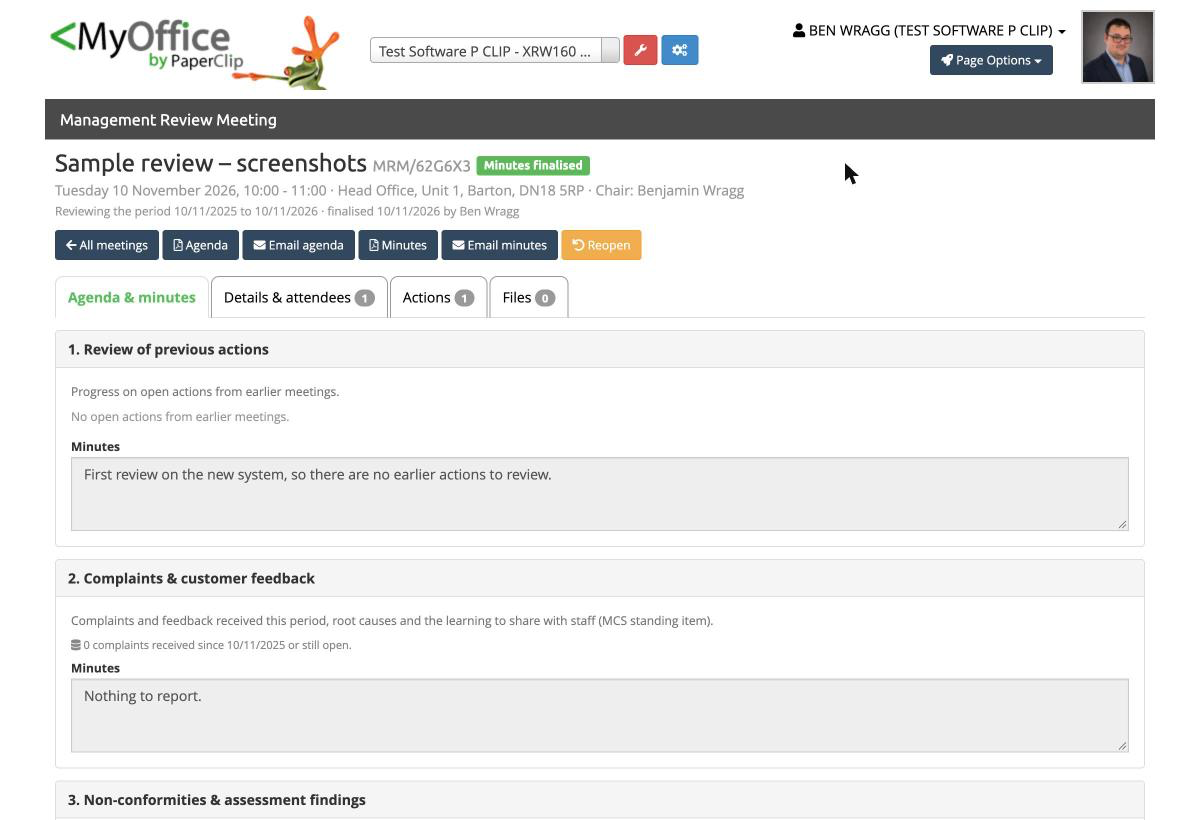
After finalising, Minutes opens the final PDF and Email minutes sends it to attendees, in the same way as the agenda. Before finalising, the button reads Draft minutes.
Reopen unlocks the meeting so you can make corrections. You're asked for a reason. Each reason is saved with the date and time and shown on Details & attendees. Reopening unfreezes the data, so it refreshes the next time you finalise.
Delete is only available while a meeting is open. It removes the meeting and the actions raised at it, and reopens any earlier actions that were closed at it.
Workflow at a glance
flowchart LR
  A[Planned] -->|first minutes saved| B[Minutes in progress]
  B -->|Finalise minutes| C[Minutes finalised]
  C -->|Reopen - reason required| B
Open actions don't stop at the end of a meeting. They carry forward to every later meeting until they're marked Done or Cancelled.
Updated 13 days ago